How to Use the “Stream Providers” Feature in XUI.One Panel
✔ What Are Stream Providers?
A stream provider is the source of your IPTV streams. Adding purchased lines here lets you monitor active connections, view available channels, and enable features like Title Sync for accurate channel titles (like on Live Events Channels)---
 Where to Find It
Managment → Service Setup → Stream Providers---
 Step-by-Step: Adding a Stream Provider
 Click “Add Provider”
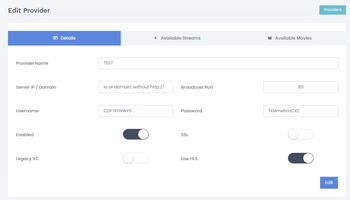
You will be asked for:
- Provider Name: Enter the name of your provider here.
- Server IP / Domain: Write the provider's DNS without "http://" or "https://", just the DNS.
- Broadcast Port: Enter the port used by your provider.
- Username: The username provided by your provider for the line.
- Password: The password provided by your provider for the line.
- Enabled: Keep this turned on to activate.
- SSL: Enable this if your provider uses SSL (HTTPS).
- Legacy XC: Enable this if your provider uses the XUI panel.
- Use HLS: Leave this as is.
The you should see something like:

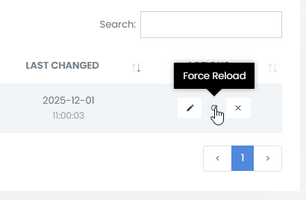
If the Streams or Movies were not detected, then click the "Force Reload" button.
---
 Edit and Setup
Now click the "Edit" Button
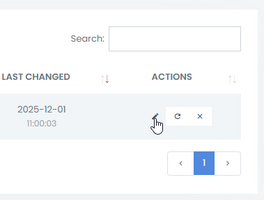
You will now have two more Tabs:
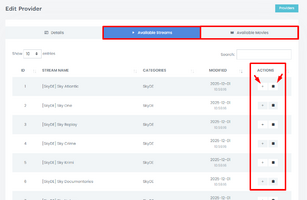
From here, you can manually add your desired channels to your playlist (using the + button) Or simly copy the stream URL (using the copy button).
---
⚠ Common Issues & Solutions
 Invalid Provider Credentials
Check:• Correct username/password
• Correct port
Test manually:
http://ip:port/player_api.php?username=USER&password=PASSIf JSON appears → works.
---
No Streams Imported
Possible reasons:• API disabled by provider
• Wrong protocol
• Provider uses Cloudflare
• Category issues
---
Streams Show “OFFLINE”
Cause: XUI cannot reach the provider.Check:
• Firewall
• IP blocking
• Wrong port
• Provider changed URLs
• You add http:// before server ip or domain
Last edited: