Welcome to World of IPTV

Join us now to get access to all our features. Once registered and logged in, you will be able to create topics, post replies to existing threads, give reputation to your fellow members, get your own private messenger, and so, so much more. It's also quick and totally free, so what are you waiting for?

Forum Rules

Our Rules: Read to avoid getting banned!

Advertising

Introduce Yourself to the World with Us!

Resource Database

Find the newest resources around IPTV!

Account upgrade

Upgrade your account to unlock more benefits!

Store Sale SELLING DRM PYTHON SCRIPTS FOR IPTV PROVIDERS

Store Sale
Status
Not open for further replies.

redhat

Administrator
Staff member
Administrator
Joined
Jun 19, 2019
Messages
3,467
Reaction score
17,063
Points
134
Location
root[@]woi
🔥 SELLING DRM PYTHON SCRIPTS FOR IPTV PROVIDERS 🔥

💥 Compatible with Xaccel-Codec Panel 💥

✔ 100% Working | ✔ Daily Updated | ✔ Easy to use

🚀 Each Script Only 250€


What does this DRM Script do?
The DRM Python script grabs the required stream URL's & keys and automatically adds them to Xaccel-Panel via API.

It checks the validity at certain intervals and updates them fully automatically in Xaccel-Panel if they are no longer valid.

This ensures a failure of the streams.

  • Recommended OS: Ubuntu 22.04 or higher
  • Recommended VPS/Server: Depending on the number/resolution/bitrate of the channels
  • Third-party software: Xaccel-codec Panel - ( https://www.xaccel-codec.com ) (The QuickSync plan for 30 euros is sufficient.)
  • Account: You need a valid active subscription for the corresponding provider
    (You will be able get those channels which are avalible in your subscription)
  • Python: 3.2 or higher and pip3
  • IP address: Non-blocked IP from the according to Provider Country
  • Proxy Server: Depending on the provider, some services have strong geo-restrictions, so an unblocked proxy or a residential proxy IP may be required

    Info:
    To ensure the streams work properly with your proxy, you should log in to the provider’s website through your browser using the proxy server IP, and test whether you can stream all the channels.


Whats the difference between: Live DRM Scripts (StreamUpdater) and Live DRM Scripts ?
The Live Scripts are "Standalone" scripts.
The "StreamUpdater" scripts run as "child" scripts under the Main Script (controller) "StreamUpdater".
This means that multiple DRM scripts can be added under StreamUpdater and can be controlled via Main Script "StreamUpdater"
However, there are no differences in the basic auto update functions between them.

What are: Other Special DRM Scripts ?
Are media download scripts for the corresponding platforms.

How may channels can I get with the a script?
This varies greatly and depends on the restrictions of the provider.
Some providers have none at all and others have very strict restrictions.
Please don't ask me how many channels each provider allows; I don't know that offhand with more than 150 providers.

How about in case of upates/changes by the provider?
You will get free updates for the first 6 months after ordering for minor changes by the provider.
Afterwards you can extend the updates for another 6 months with a 50% discount.


Direct order link for instant downloads:

If the Script still not added to the Store, so you can sent me DM me to order your desired script(s) from the below list!


📦 Live DRM Scripts (StreamUpdater)
TivibuZiggoGoIzziGoTVZapiTV
AppleTVChannel5Channel4BBC
SunriseTVTVPTelenetTVVirginGo
AmpliaTVPremierSportsAmazonPrimeVideoUKAmazonPrimeVideoBR
GaaPlusVodafonePTNetteraGoNetTV
OnePlayTVSatGOPlayPlusUSTVNOW
StarTVStreamRaiPlayElementalTVtrueID
FoxtelHuluITVXMagioGo
YettelTVTabiiSkySportNowVtmGo
GalwaygaaNFLOdidotv4play
ClaroTVYuppTVFloRacingSweetTV
SpectrumEuropeanLeagueFootballTataPlayDSTV
Optus (SL3000)cdaPLTVPlusTRAntennaPlus
SkyGoNZSkyGoUKWinkPlutoTV
AlmanasaTVTennisTVMOVETVESPN
CablevisionPlusSkymaisBRCHLVix
ViaPlayMLBParamount+Tennis Channel
MolotovNowTVMojMaxTVFanatiz
NLZietA1XploreSINHLVideoLand


📺 Live DRM Scripts
VideoLandBlueTVTodTV TRNowPlayer
NowEA1XploreHRStarPlusTelevioHR
FuboTVF1RTL+WaipuTV
NJPW WorldTodTV ARBallySportsiWantTFC
RMCSportPlayerPLSwitchTVTwistTV
ViaPlayStcTVKayoMediasetInfinity
TivifyTVDigitAlbDaznCanalPlus
SkySportChVooTVMovistarPolsatBoxGo
o2CzOrangeTVOrangeTVRoMeoGo
SensaErtflixPickxSunriseTV
SaltTVDiscovery+CytavisionSfr Fr
AllenteSupernovaGo3IrisTV
DirectTVSolcoTVTetPlustrueID
CignalPlayA1XploreBGMagentanet+ TV
teliaLTVectraTVSmartSpectrumSling
CosmoteTVA1XploreSIUFCJioTV
NowTV/WowTVPeacock


🧩Other Special DRM Scripts
WeTVSculptSocietYoukuTVFilminES
iq.comGagaoolalaMarrow DownloaderVoyo Downloader


📩 PM me to order your scripts now! Limited Slots!

🛡 CDM & PR Certs Included | 🔐 Secure & Optimized | 🧠 Support for Custom Integration

⚠ No refunds after delivery! Buy only if you know what you're doing!


Legal notice:
This offer is for training and research purposes. It is a prerequisite that you have a corresponding subscription with the provider. Viewing encrypted content without a subscription is illegal.
 
Last edited:

Script Installation Tutorial for "Standalone" Scripts

Install Python3 and pip3

Open your terminal and enter the following command:
Bash:
sudo apt-get install python3 python3-pip

Install the Xaccel-Codec Panel:


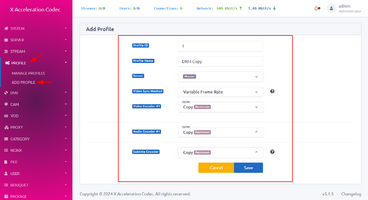
Create a profile in Xaccel-Codec according to the screenshot below:

1752215139971.png

Extract the script archive and upload the folder (in this example for MeoGo, adapt accordingly for other scripts)

  • Extract the script archive (e.g. MeoGo.rar)
  • Rename and upload the folder to your server’s /root directory, like: /root/MeoGo

Adjust the config.json
  • Open and adjust the config.json under: /root/MeoGo
JSON:
{
  "xaccel_url": "XACCEL URL HERE",      
  "xaccel_token": "XACCEL TOKEN HERE",
  "proxy": "",
  "user-agent": "Mozilla/5.0 (Windows NT 10.0; Win64; x64) AppleWebKit/537.36 (KHTML, like Gecko) Chrome/134.0.0.0 Safari/537.36",
  "stream_prefix": "MeoGo | ",
  "delay": 30,
  "profile": 1,
  "video_map": "v:best",
  "tolerance": 0.6,
  "rate_emulation": "yes"
}

Change only the following values:
"xaccel_url": "XACCEL URL HERE",
Add the Xaccel-Codec Panel Server IP or URL here, like: http://xxx.xxx.xxx.xxx.
If you changed the default XA port, also include the current port like: http://xxx.xxx.xxx.xxx:8080

"xaccel_token": "XACCEL TOKEN HERE",
Read below to learn how to get the Xaccel Panel API Token and add it here.

"proxy": "",
Depending on the provider, some services may have strong geo-restrictions. An unblocked or residential proxy IP may be required.

Info:
To ensure the streams work properly with your proxy, log in to the provider’s website through your browser using the proxy IP and test if you can stream all channels.

Install requirements
  • Change to the script folder: /root/MeoGo
and run:
Bash:
pip3 install -r requirements.txt

Starting the DRM Provider Script
  • Start the DRM Provider script from the script folder, e.g.: /root/MeoGo
Bash:
python3 MeoGo.py

1752217668246.png

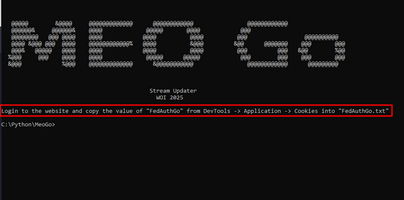
The script will print out simple instructions (may differ by provider), like:
Login to the website and copy the value of "FedAuthGo" from DevTools -> Application -> Cookies into "FedAuthGo.txt"

Once you’ve followed the instruction, just restart the script:
Bash:
python3 MeoGo.py

To create (add) the channels in the Xaccel-Panel, select the first menu option:
1. Manually create/update streams

To start the auto-updater, select the second menu option:
2. Start automatic updater

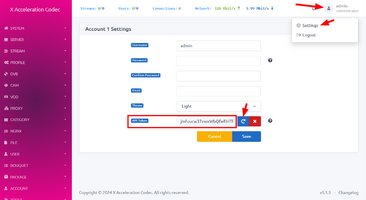
How to get Xaccel-Codec Panel API Token:

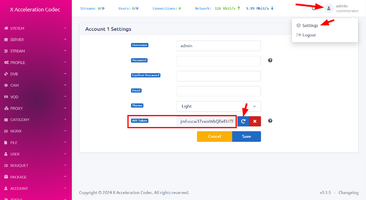
To generate the API token, log in to the Xaccel Panel and follow these steps:
  1. Click the image.png icon at the top right corner.
  2. Click the image.png icon in the popup menu to open the Account Settings page.
  3. Click the image.png icon next to the API Token option to generate a new API token and save the settings.
1752216905219.png
 
Last edited:
Script Installation Tutorial for "StreamUpdater" Scripts

Install Python3 and pip3

Open your terminal and enter the following command:
Bash:
sudo apt-get install python3 python3-pip

Install the Xaccel-Codec Panel:


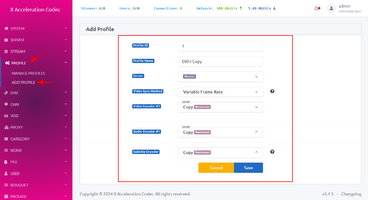
Create a profile in Xaccel-Codec according to the screenshot below:

1752218754246.png

The StreamUpdater Scripts always come with two archives (StreamUpdater + Provider).

Extract both script archives and upload the folders (in this example for Tivibu, adapt accordingly for other scripts)

  • Extract the StreamUpdater archive (e.g. StreamUpdater0.14.rar)
  • Extract the Provider script archive (e.g. TivibuTR.rar)

Upload
  • Upload the StreamUpdater folder to your server’s /root folder, like: /root/StreamUpdater
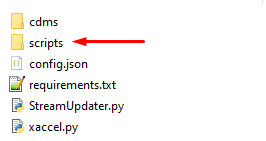
  • Upload the Provider Script folder (Tivibu) to the subfolder scripts under: /root/StreamUpdater/scripts/Tivibu1752220977789.png

Adjust both config.json files
  • Open and adjust the config.json under: /root/StreamUpdater
JSON:
{
  "xaccel_url": "XACCEL URL",
  "xaccel_token": "XACCEL TOKEN",
  "base_url": "http://127.0.0.1",
  "port": 27015
}

Change only the following values:
"xaccel_url": "XACCEL URL HERE",
Add the Xaccel-Codec Panel Server IP or URL here, like: http://xxx.xxx.xxx.xxx.
If you changed the default XA port, also include the port like: http://xxx.xxx.xxx.xxx:8080

"xaccel_token": "XACCEL TOKEN HERE",
Read below to learn how to get the Xaccel Panel API Token and add it here.

  • Open and adjust the config.json under: /root/StreamUpdater/scripts/Tivibu
JSON:
{
  "cdm_file_name": "sharp_aquos_lcd_tv_4t-cxxfxx_sl3000.prd",
  "proxy": "",
  "user_agent": "Mozilla/5.0 (Windows NT 10.0; Win64; x64) AppleWebKit/537.36 (KHTML, like Gecko) Chrome/137.0.0.0 Safari/537.36",
  "prefix": "Tivibu | ",
  "profile": 1,
  "video_map": "v:best",
  "audio_map": "a",
  "subtitle_map": "s:0?",
  "rate_emulation": "yes",
  "use_legacy": true,
  "proxy_in_xaccel": null
}

Change only the following value:
"cdm_file_name": "sharp_aquos_lcd_tv_4t-cxxfxx_sl3000.prd",
A default CDM or PlayReady certificate (like in this case) comes with the provider script by default.
ONLY change this value if you use a different CDM or PR certificate!

Important Info:
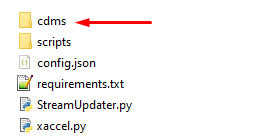
The default folder for CDMs and PR certificates is located under: /StreamUpdater/cdms
So, you must place the CDM or PR cert (which comes in the Provider Script archive) into this folder!
1752220926348.png

"proxy": "",
Depending on the provider, some services may have strong geo-restrictions. An unblocked or residential proxy IP may be required.
Add your proxy credentials in the following format: http://user:[email protected]:port

Important Info:
To ensure the streams work properly with your proxy, log in to the provider’s website using your browser and the proxy server IP, and test if all channels stream properly.

Install both requirements
  • Change to the StreamUpdater script folder: /root/StreamUpdater
and run:
Bash:
pip3 install -r requirements.txt

  • Change to the DRM Provider script folder: /root/StreamUpdater/Tivibu
and run:
Bash:
pip3 install -r requirements.txt

Starting the StreamUpdater Script
  • Change to the folder: /root/StreamUpdater
  • And start the StreamUpdater script:
    Bash:
    python3 StreamUpdater.py

1752221114597.png

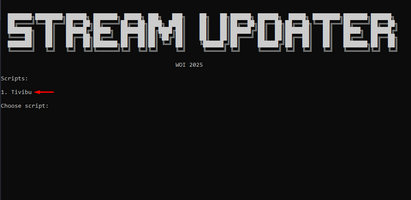
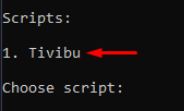
Choose the appropriate provider with which you want to continue. In our case: 1. Tivibu​

1752221405116.png

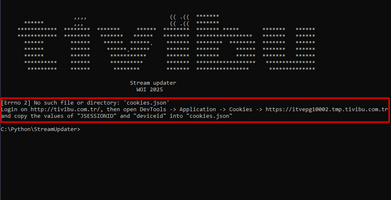
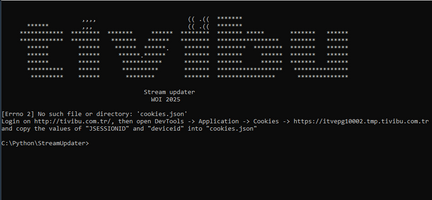
The script will print out simple instructions (may vary by provider), such as:

Login on http://tivibu.com.tr/, then open DevTools -> Application -> Cookies -> https://itvepg10002.tmp.tivibu.com.tr and copy the values of "JSESSIONID" and "deviceid" into "cookies.json"

Once you’ve followed the instructions, just restart the script:
Bash:
python3 StreamUpdater.py

To create (add) the channels to the Xaccel-Panel, select the first menu option:
1. Manually create/update streams

To start the auto-updater, select the second menu option:
2. Start automatic updater (This option is not for permanent operation, see below for permanent operation)


How to run StreamUpdater for permanent auto update:


You have to run the script in a screen session, if not already installed, install screen with:
Bash:
apt install screen

# Create and enter a new screen session according to your choice, in our case named "Tivibu"
Bash:
screen -S Tivibu

# Inside the screen, run the pm2 command
Bash:
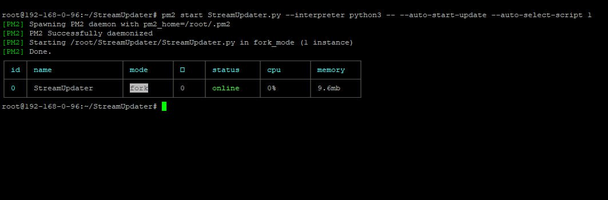
pm2 start StreamUpdater.py --interpreter python3 -- --auto-start-update --auto-select-script {SCRIPT_NUMBER_HERE}

The {SCRIPT_NUMBER_HERE} is number of the script you that is showing you in the Scripts List, in our case it would be 1
1757857546891.png
If you have multiple scripts, you have to choose the accoring script number.

You will see output like:
1757857758099.png

Options for pm2

Stop by process name or process ID (from your table, it’s ID 0)

Bash:
pm2 stop StreamUpdater
or
Bash:
pm2 stop 0

If you also want to remove it completely from PM2’s list (not just stop):
Bash:
pm2 delete StreamUpdater
or
Bash:
pm2 delete 0

Check status after stopping
Bash:
pm2 list


Detach from screen
Press Ctrl + A and then D to detach screen from session

To re-attach the Tivibu screen session:
Bash:
screen -r Tivibu

Read more about screen: https://linuxize.com/post/how-to-use-linux-screen/
Important info:

You have create for each provider it's own screen session

How to get Xaccel-Codec Panel API Token:


To generate the API token, please log in to the Xaccel panel first, then follow these steps:
  1. Click the
    image.png
    icon at the top right corner.
  2. Click the
    image.png
    icon in the popup menu to open the Account Settings page.
  3. Click the
    image.png
    icon next to the API Token option to generate a new API token and save the settings.
1752221584630.png
 

Attachments

  • 1752221346912.png
    1752221346912.png
    19.7 KB · Views: 136
Last edited:
Channels MatchTime Unblock CDN Offshore Server Contact
100 cnx / 90€ 5Gbps / 180€ 48CPU-256GRAM 10Gbps 569€ Skype live:giefsl
500 cnx / 350€ 10Gbps / 350€ 48CPU-128GRAM 5Gbps / 349€ TG @changcdn
1000 cnx / 500€ 20Gbps / 700€ 40CPU-128GRAM 20Gbps / €980 http://coronaserver.com
Status
Not open for further replies.
shape1
shape2
shape3
shape4
shape5
shape6
Back
Top