Hi all, so I see alot of the time there are questions regarding XUI One and how to set up and have the watch folder automatically import the movies, series etc from your server that is hosting the files.
In this tutorial, I will walk you through how to set up the watch folders and make it so you don't have to manually add in 1 by 1 the media.
First off, we will start by adding a folder for our media server, the folder we will be using in this tutorial will be the comedy folder from my own personal server / servers, we will walk through it step by step and get it up and running.
Start off by logging into your ssh for your server you want to host the media on, for me I have it in my scrls_media.
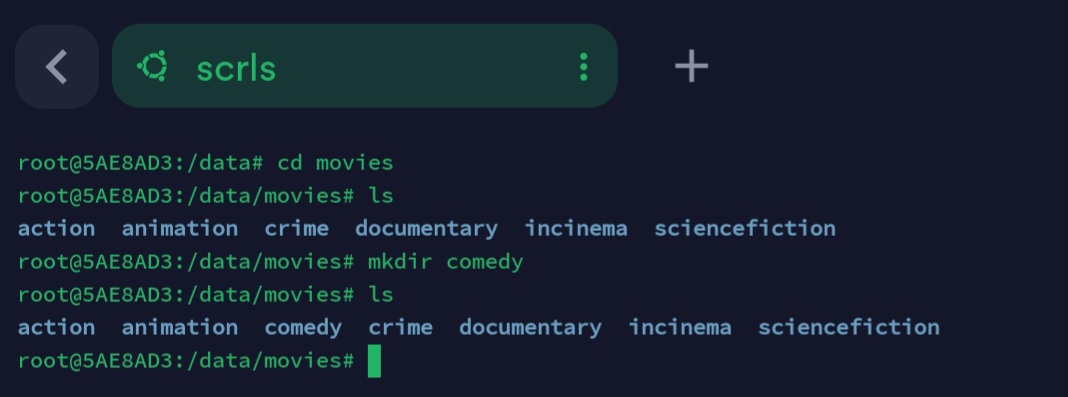
I added a folder doing the following:
This gives us a folder to store our comedy movies.
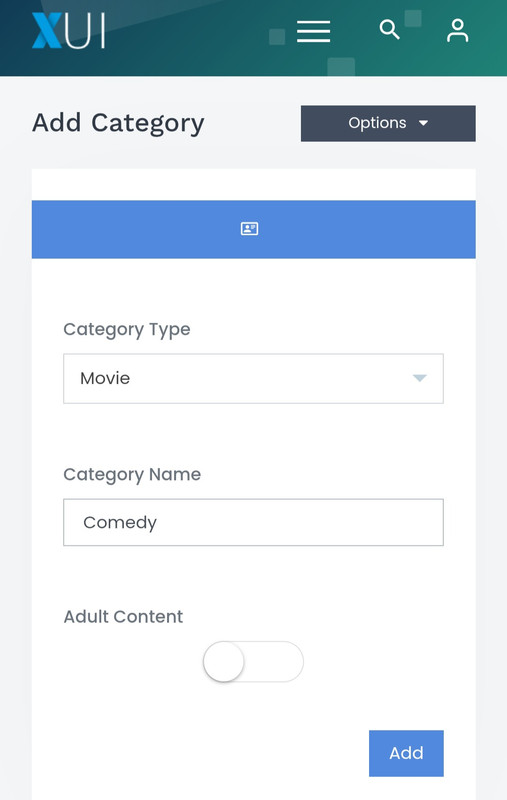
Now we have that set up, we can go to our xui panel and make a category for it named Comedy.
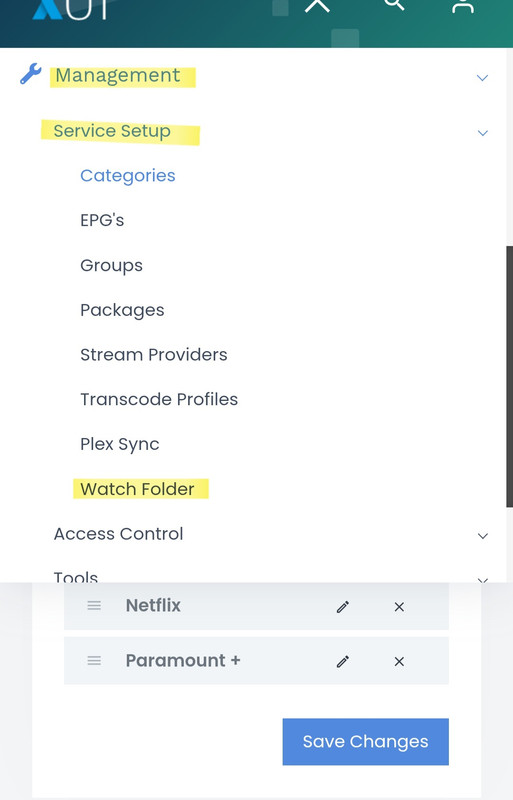
Now this is set up we can go ahead and make it so that all media that goes to the "comedy" folder in my movies section of my server will be parsed by the system and automatically linked to the tmdb info, we do this by going to our xui panel and clicking:
Management > Service Setup > Watch Folder
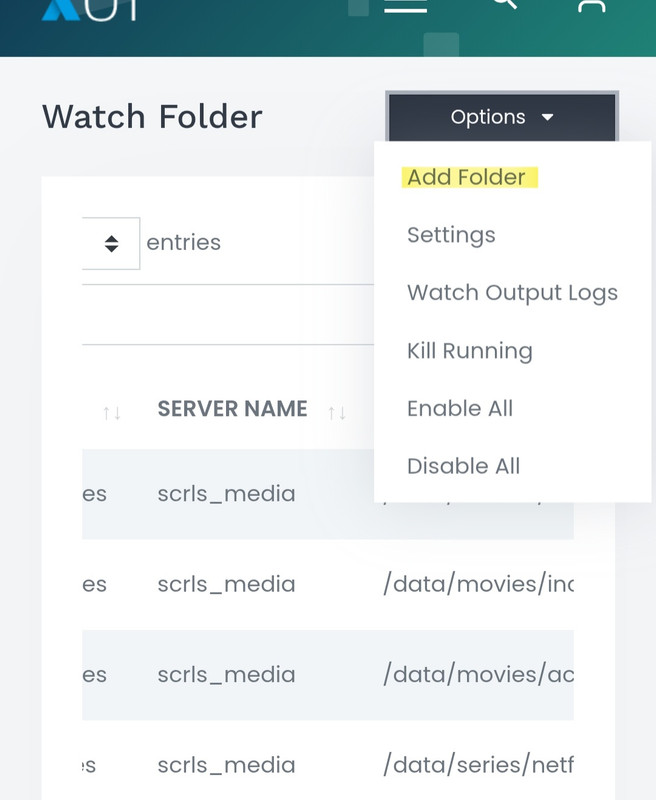
When inside the "watch folder" we just chose, you will see the following..
We will choose Add Folder
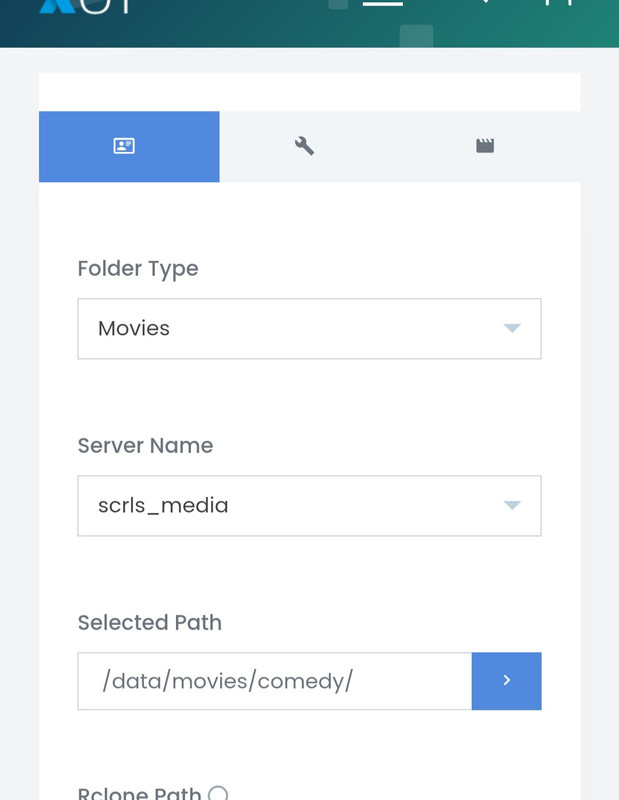
This part is where you will select where you have stored the folder "comedy" that we previously made, for me it is on my scrls_media server and inside my
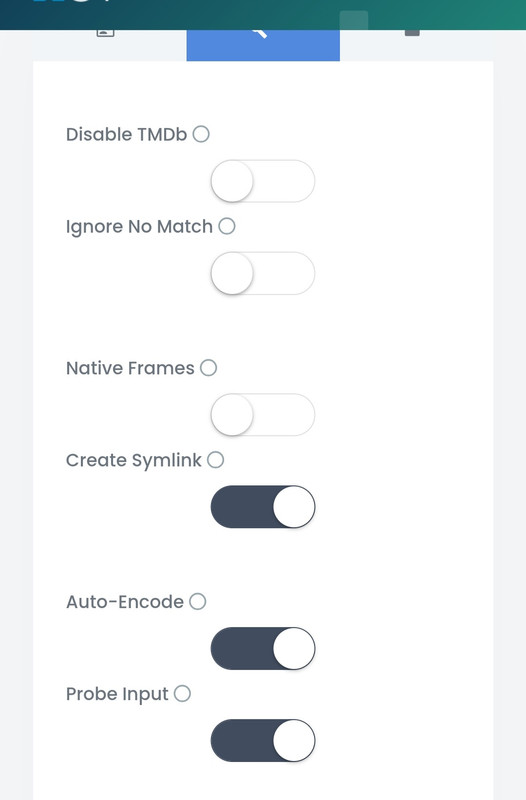
Once we do this, we have our settings for the folder we are working with, the only thing I do here is choose "create symlink"
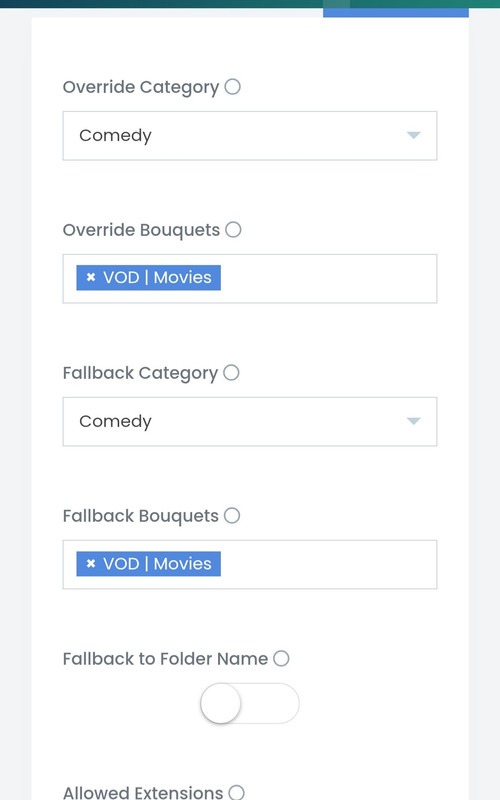
Go to the next tab and choose your bouquets previously made:
Save it and then it will run every x amount of time that you choose within your "watch folder" settings.
If there are any questions you still have and can't get it working, feel free to get in touch via this thread or via dm and I will help out.
I will have more tutorials coming for other things, this was just something I thought i would make and add in, maybe when I work out how to do it I will have a mega thread and hyperlinks to each tutorial within this forum.
In this tutorial, I will walk you through how to set up the watch folders and make it so you don't have to manually add in 1 by 1 the media.
First off, we will start by adding a folder for our media server, the folder we will be using in this tutorial will be the comedy folder from my own personal server / servers, we will walk through it step by step and get it up and running.
Start off by logging into your ssh for your server you want to host the media on, for me I have it in my scrls_media.
I added a folder doing the following:
cd /data/moviesmkdir comedyThis gives us a folder to store our comedy movies.
Now we have that set up, we can go to our xui panel and make a category for it named Comedy.
Now this is set up we can go ahead and make it so that all media that goes to the "comedy" folder in my movies section of my server will be parsed by the system and automatically linked to the tmdb info, we do this by going to our xui panel and clicking:
Management > Service Setup > Watch Folder
When inside the "watch folder" we just chose, you will see the following..
We will choose Add Folder
This part is where you will select where you have stored the folder "comedy" that we previously made, for me it is on my scrls_media server and inside my
/data/movies/comedy
Once we do this, we have our settings for the folder we are working with, the only thing I do here is choose "create symlink"
Go to the next tab and choose your bouquets previously made:
Save it and then it will run every x amount of time that you choose within your "watch folder" settings.
If there are any questions you still have and can't get it working, feel free to get in touch via this thread or via dm and I will help out.
I will have more tutorials coming for other things, this was just something I thought i would make and add in, maybe when I work out how to do it I will have a mega thread and hyperlinks to each tutorial within this forum.