How to Use "Title Sync" Feature in XUI.One Panel
 What is Title Sync?
Title Sync is a feature that automatically synchronizes and updates content titles and metadata across your IPTV system.It keeps your content library accurate, consistent, and professionally organized.
Warning:
Before using Title Sync, make sure you have already added your provider in “Stream Providers”.
(See "How to Use the “Stream Providers” Feature in XUI.One Panel" tutorial.)
---
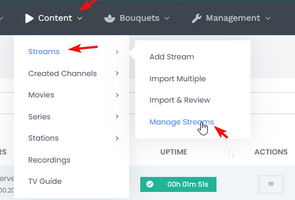
 STEP 1 — Navigate to Streams
Go to:Content → Streams → Manage Streams
---
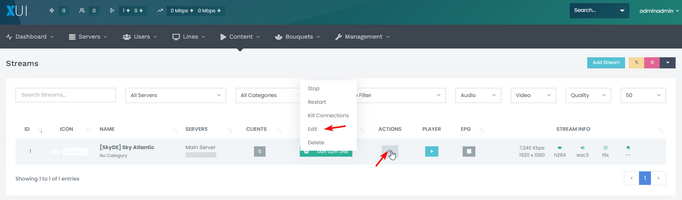
 STEP 2 — Open the Title Sync Screen
• Find the stream you want to sync• Click the Edit button
• Open the Advanced tab
• Scroll to the bottom
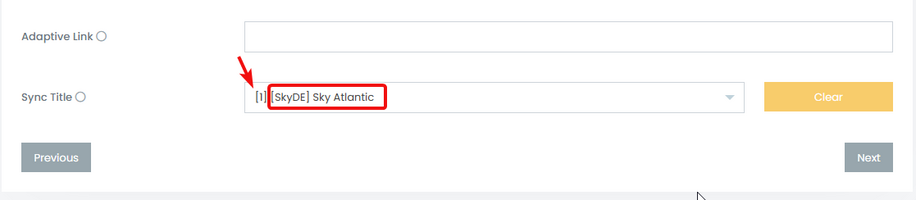
• Find the Sync Title section
---
 STEP 3 — Search & Match Correct Channel
• Enter the exact channel name• Select the matching channel from your provider list
• Make sure you choose the correct one
• If name doesn’t appear → search using the channel ID instead
To check channel ID:
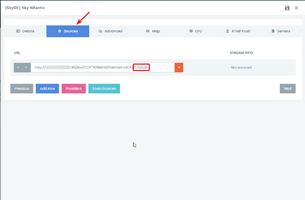
In the source URL, the last digits represent the ID.
Example:
https://test.com:port/live/username/password/1.m3u8Find the channel ID, open the "Source" Tab, find the channel ID, in our case it's
1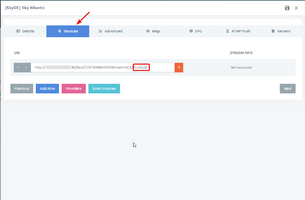 , and
, andSwitch to "Advanced" Tab
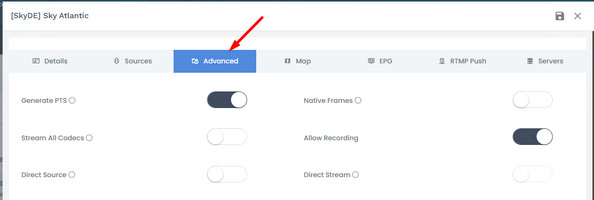
Type the exact channel name and make sure the Channel ID is correct.
 ---
--- STEP 4 — Save Settings
• Go to the Servers tab• Click Save
The channel will now automatically update its name whenever the provider changes it.
For event channels (sports, PPV, weekly events), repeat this regularly.
---
 IMPORTANT NOTE
Title Sync must be applied manually per channel.If you prefer this to be automated, you can request a paid service where the setup is done for you using direct database access.
Attachments
Last edited: